Bypass FRP On Samsung Galaxy S9 Plus: Simple Steps to Regain Control
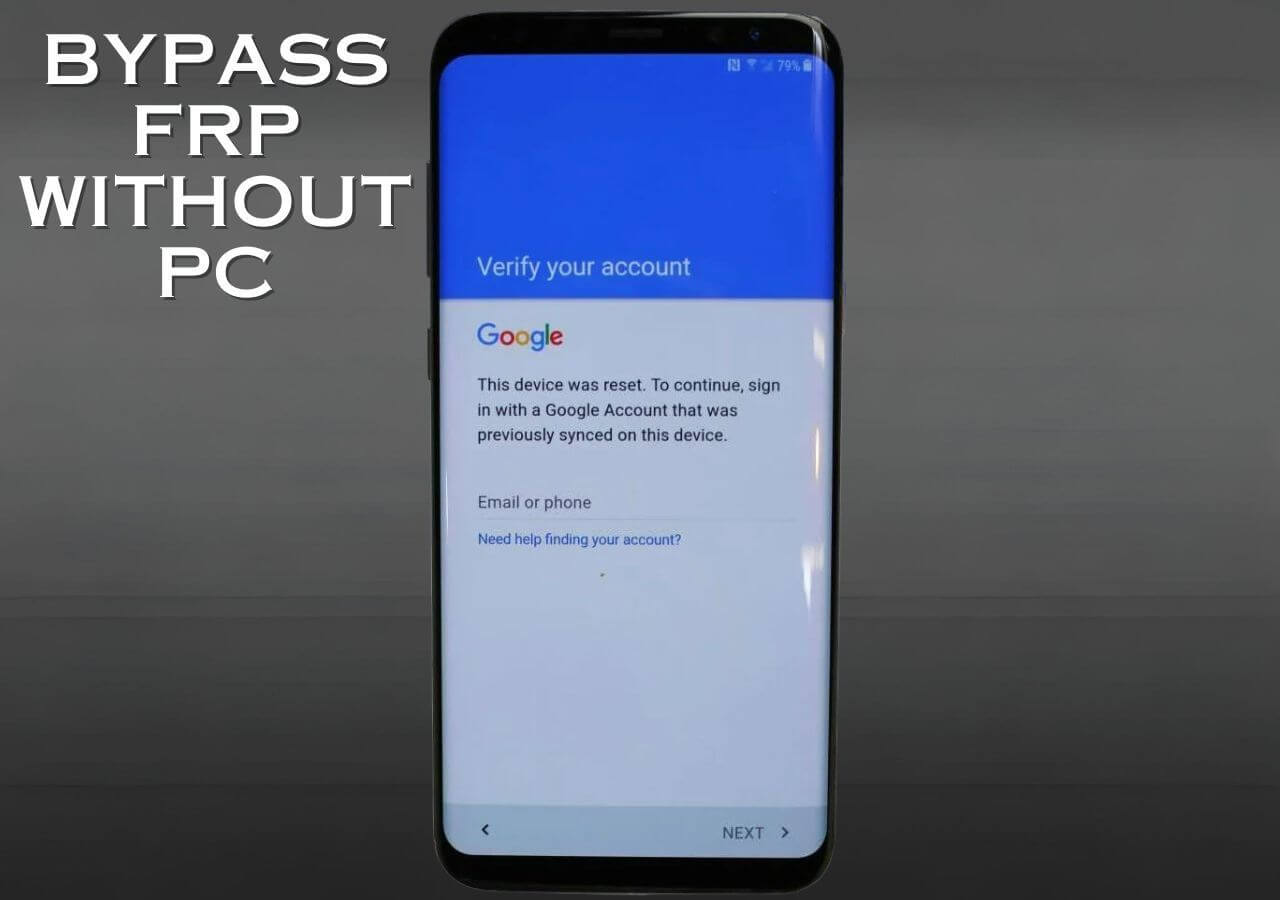
The Samsung Galaxy S9 Plus is a high-end smartphone that offers a range of advanced features and security measures. However, one of the drawbacks of this device is its ability to lock out users after performing a factory reset or experiencing a boot loop. This phenomenon, known as the Factory Reset Protection (FRP), can be frustrating and time-consuming to resolve. In this article, we will guide you through the simple steps to bypass FRP on Samsung Galaxy S9 Plus and regain control of your device.
The FRP feature is designed to prevent unauthorized access to the device, but it can be a significant hindrance when you need to access your device urgently. The good news is that bypassing FRP on Samsung Galaxy S9 Plus is possible using a few simple steps. These steps can be completed using a combination of the device's built-in settings and external tools, and do not require any technical expertise.
The Causes of FRP Lock on Samsung Galaxy S9 Plus
The FRP lock on Samsung Galaxy S9 Plus occurs when the device is reset to its factory settings, either through the Settings menu or by using the hardware keys. This process erases all data on the device, including Google account information, and locks the device to prevent unauthorized access. There are several reasons why the FRP lock may occur, including:
*
Resetting the device to factory settings
*
Performing a boot loop
*
Experiencing a system crash or failure
*
Updating the device's software
Simple Steps to Bypass FRP on Samsung Galaxy S9 Plus
The process of bypassing FRP on Samsung Galaxy S9 Plus involves a few simple steps that can be completed using the device's built-in settings and external tools. Here's a step-by-step guide to bypassing FRP on Samsung Galaxy S9 Plus:
### Step 1: Restart the Device
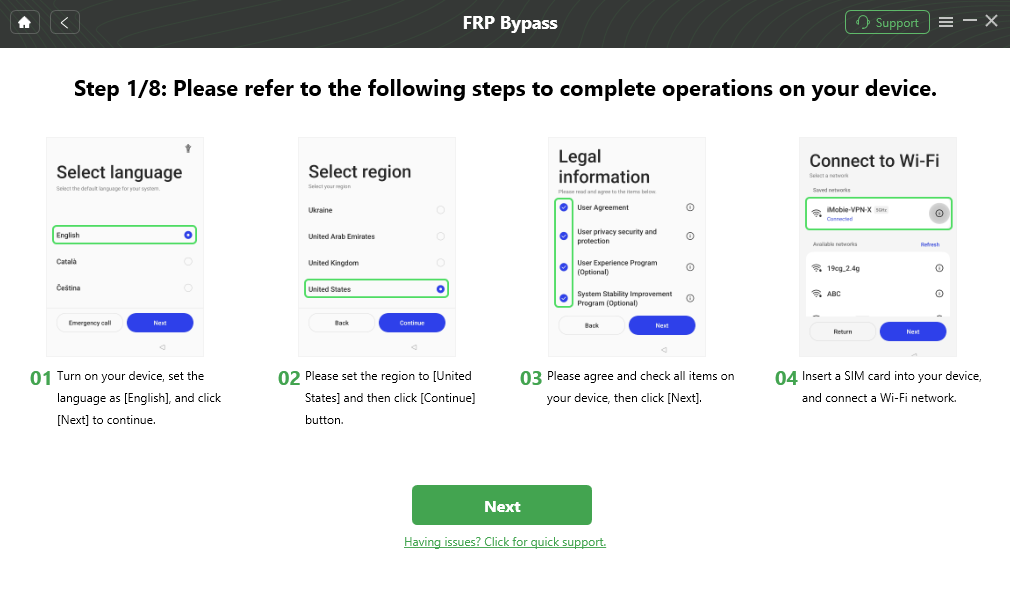
The first step to bypassing FRP on Samsung Galaxy S9 Plus is to restart the device. Press and hold the power button until the device turns off, and then release the button. Press and hold the power button again until the device turns back on.
### Step 2: Select Language and Country/Region
Once the device turns on, select the language and country or region using the on-screen keyboard. Select the language you want to use, and then select the country or region where you are located.
### Step 3: Disable Wi-Fi and Bluetooth
Next, disable Wi-Fi and Bluetooth on the device by going to Settings > Connections > Wi-Fi and selecting the "Wi-Fi" toggle to disable it. Repeat the same process for Bluetooth by going to Settings > Connections > Bluetooth and selecting the "Bluetooth" toggle to disable it.
### Step 4: Connect to a Computer
Connect the Samsung Galaxy S9 Plus to a computer using a USB cable. This will allow you to access the device's internal storage and bypass the FRP lock.
### Step 5: Use Samsung FRP Tools
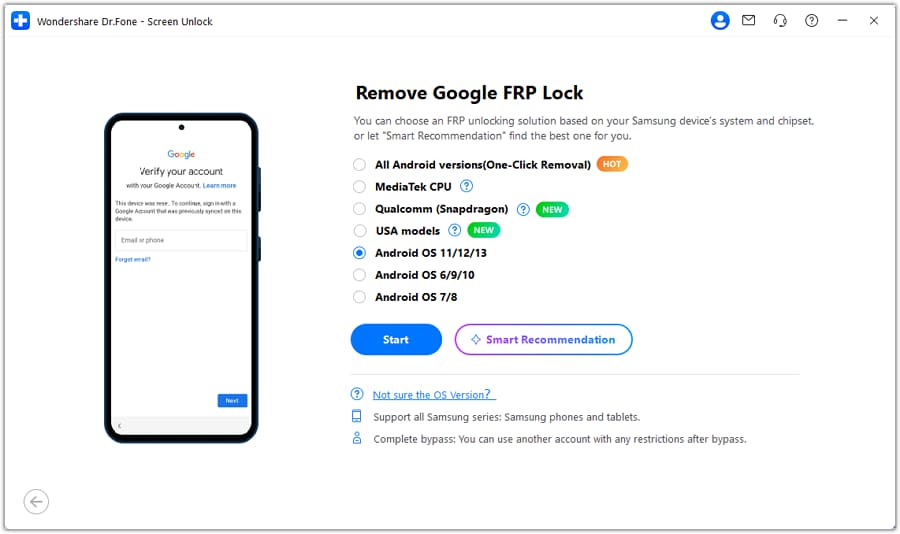
Download and install the Samsung FRP tools on your computer. These tools will allow you to bypass the FRP lock and regain control of the device. Follow the instructions provided with the tools to complete the process.
### Step 6: Factory Reset the Device
Once the FRP lock has been bypassed, factory reset the device by going to Settings > System > Advanced > Reset options > Erase all data (factory reset). This will erase all data on the device, including the FRP lock.
### Step 7: Set Up the Device
Finally, set up the device by following the on-screen instructions. Select the language and country or region, and then connect to a Wi-Fi network. Enter your Google account information to set up the device and regain control of it.
Precautions to Take When Bypassing FRP on Samsung Galaxy S9 Plus
Bypassing FRP on Samsung Galaxy S9 Plus can be a complex process, and it's essential to take precautions to avoid any potential risks or complications. Here are some precautions to take when bypassing FRP on Samsung Galaxy S9 Plus:
*
Use a trusted and reputable source for the Samsung FRP tools
*
Follow the instructions provided with the tools carefully
*
Backup your data before bypassing the FRP lock
*
Use a secure connection to access the device's internal storage
Conclusion
Bypassing FRP on Samsung Galaxy S9 Plus is a relatively simple process that can be completed using the device's built-in settings and external tools. By following the steps outlined in this article, you can regain control of your device and access your data. However, it's essential to take precautions to avoid any potential risks or complications, and to use trusted and reputable sources for the Samsung FRP tools.